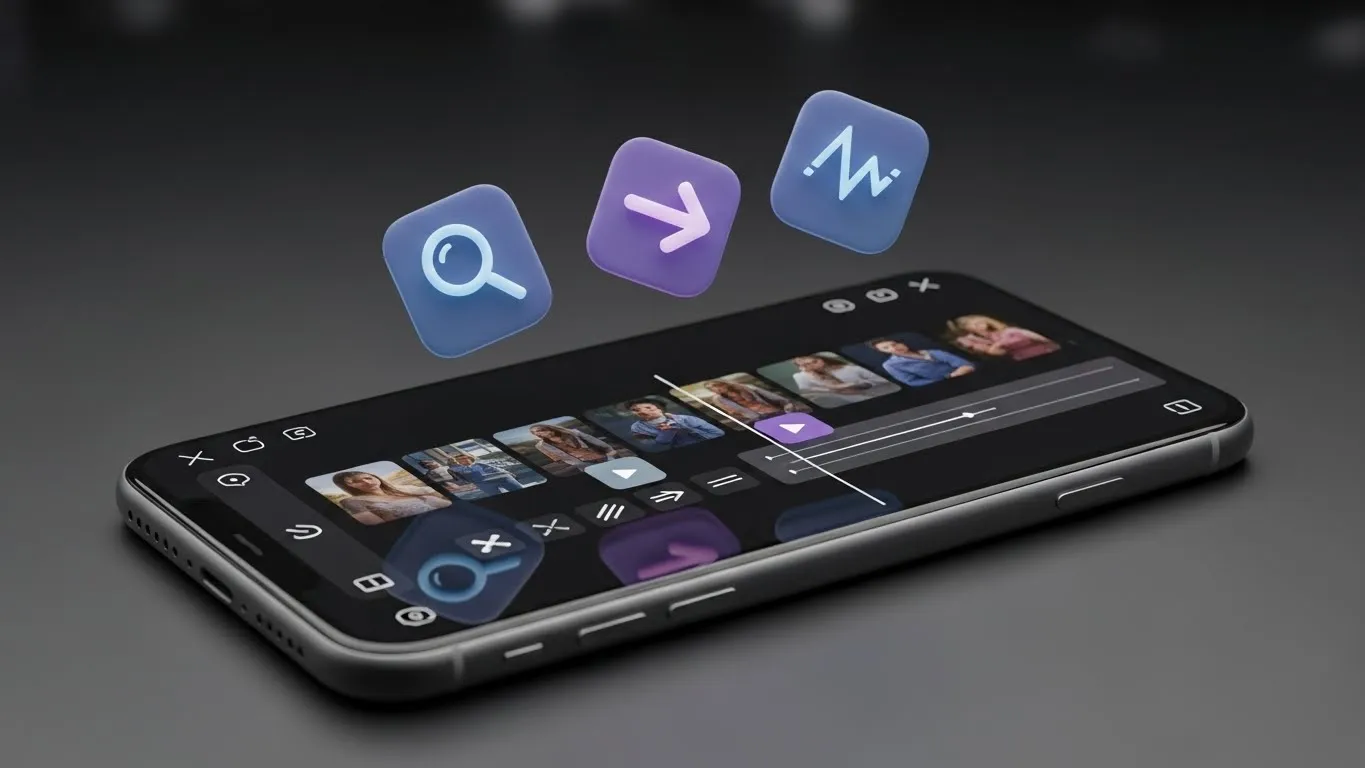
Best VN Transitions for Smooth TikTok, Reels, and YouTube Edits
VN Video Editor, also known as VlogNow, is one of the easiest mobile editors today. It runs on Android, iOS, and even Mac. Many creators choose VN because it’s free, fast, and simple enough for anyone to use. We found that most users want clean results without learning heavy software, and VN helps them reach that level, especially for those who still prefer VN Old Versions on older devices.
Our analysis shows that VN transitions play a huge role in how your final video feels. A good transition can change the pace, guide the viewer’s eye, and make short clips feel more polished. This is why editors on TikTok, Reels, Shorts, and YouTube vlogs rely on VN for quick edits. Even VN Mod APK users follow the same goal: smooth cuts with trend-friendly styles, and many of them also use our VN Templates Download page to save time and keep their transitions consistent.
This guide is for anyone who edits on a phone and wants better flow in their videos. If you share vlogs, daily clips, travel shots, gaming highlights, or fast-beat edits, this breakdown will help. At https://vlogappnow.com, we tested different transitions across real projects. We checked how they work with music, how they look on Reels, and which ones feel smooth in VN’s timeline.
Here’s what you’ll learn in this guide:
- The transitions that look best for short-form videos
- How to add and control transitions inside the timeline
- How to use keyframes for custom zoom or motion effects
- How templates and QR codes save time
- Timing tricks that make your cuts feel cleaner
You can also check our VN Effects Download page if you want ready-made effects that match these steps and help you edit faster.
Best VN Transitions at a Glance
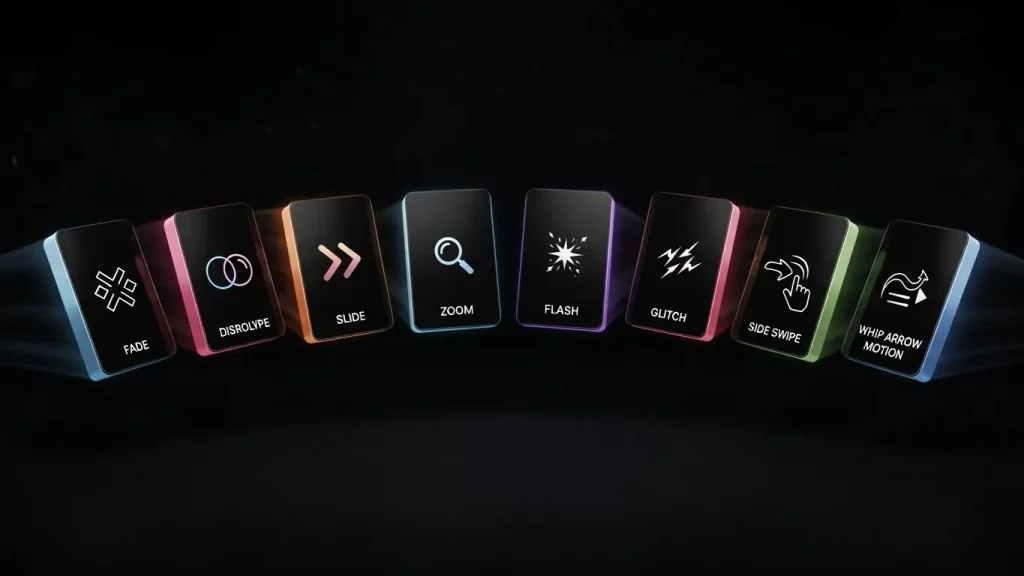
This quick list gives you the best VN transition to use right now. We tested these on real clips at vlogappnow.com, and our analysis shows they work well for almost every style of short-form content. If you’re new to presets, you can also learn how to use VN Templates to apply these transitions even faster.
VN Transitions List
Cross-dissolve
Great for smooth blends between similar shots. Works well in vlogs and aesthetic clips, and many editors compare this style when checking VN vs CapCut to see which app fits their workflow.
Fade in / fade out
Simple option for scene openings or mood shifts. Many editors use this for intros and outros, and some also pair it with keyframe moves after learning how to use keyframes in VN for added motion.
Slide/push transitions
A clean choice for travel videos, B-roll, and story-style edits. Flow feels natural in moving shots, and you can make these cuts even smoother once you learn how to do masking in VN for creative transitions.
Zoom 1 / Zoom 2
Good for punchy, modern edits. These options hit hard on beat drops or fast cuts, and they look even cleaner when you also know how to stabilise video in VN Video Editor for shaky clips.
Bright light / Flash-style transition
Popular in aesthetic reels and travel content. Adds a sharp burst that feels trendy, and it works well on phones too, especially when using VN Video Editor for iOS for clean exports
Glitch transitions
Best for gaming, tech clips, and beat edits. Adds energy without extra work, and many creators compare this style when checking VN Video Editor vs Alight Motion to see which app gives them better control.
Side One–style transition
Often seen on Instagram Reels. Looks like a quick side swipe that fits text reels and POV clips, and you can make these edits even better once you learn how to add text in VN Video Editor for clean overlays.
Whip-style motion transitions
Created with keyframes and fast movement. Works great on fast beats or moving shots.
The best transition for you depends on your clip style, the speed of your edit, and your music beat. We found that simple moves often look cleaner than heavy effects, especially in short videos, and you can improve them even more after learning how to remove green screen in VN Video Editor for cleaner overlays.
VN Transitions Basics (Timeline, Plus Icon, and Duration Slider)
How Transitions Work in VN Video Editor
What Is a Video Transition?
A video transition is the move between one clip and the next. A simple cut switches instantly. A transition adds a small effect to make that switch look smoother. We found that transitions guide the viewer’s eyes and keep the story clear. They also help hold watch time because the flow feels more natural.
Creators use transitions to control pace. Fast edits fit music beats, and slow edits fit travel clips or calm vlogs. Our analysis shows that even one clean dissolve can lift the quality of a simple video, and this is why many editors rely on VN Transitions when they want smoother flow without extra work.
Understanding the VN Timeline
The timeline is the main workspace in VN Video Editor. It’s the bar where you place your clips in order. Each clip sits in a row, and you can see where your audio, effects, and transitions fit. Think of it like a map of your full video from start to finish.
In VN, the timeline shows your clips in boxes. Audio sits below them. This layout makes it easy to check where a beat hits or where you want a transition. When we tested VN at https://vlogappnow.com, we saw that new editors learn faster because everything is in one clean view.
Where to Find the Transition Library in VN
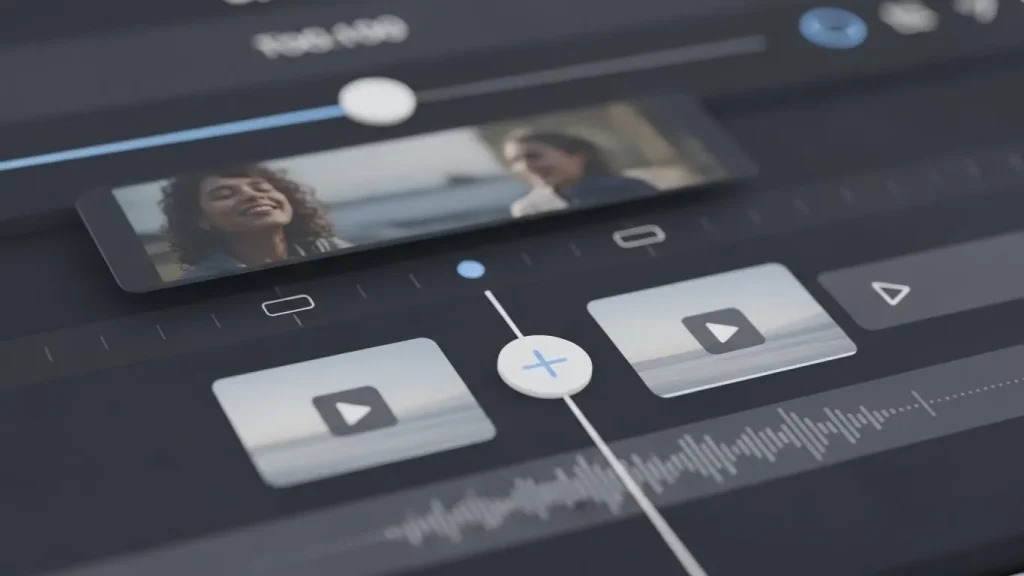
ou can add transitions only when you have at least two clips on the timeline.
Follow these steps:
- Open your project.
- Place two clips next to each other.
- Look for the white plus icon (+) between them.
- Tap the icon to open the transition menu.
This menu shows groups like Basic, Zoom, Slide, FX, and more. Each group holds styles you can test with a preview. Many creators use Zoom and Slide groups the most because they work well on short-form content.
How Transition Duration Works
Every transition in VN has a duration slider. It sits under the preview window. Slide left for a quicker move. Slide right for a slower one.
Our analysis shows that duration settings change the full feel of your edit:
- Fast beats: 0.1–0.2 seconds
- Normal vlogs: 0.3–0.5 seconds
- Slow, calm clips: 0.5–0.8 seconds
Short transitions hit hard on music drops. Long transitions feel smooth and steady. At vlogappnow.com, we tested these ranges across travel clips, daily vlogs, and reels. These timings gave the cleanest results in most cases.
Core VN Transitions Every Editor Should Know
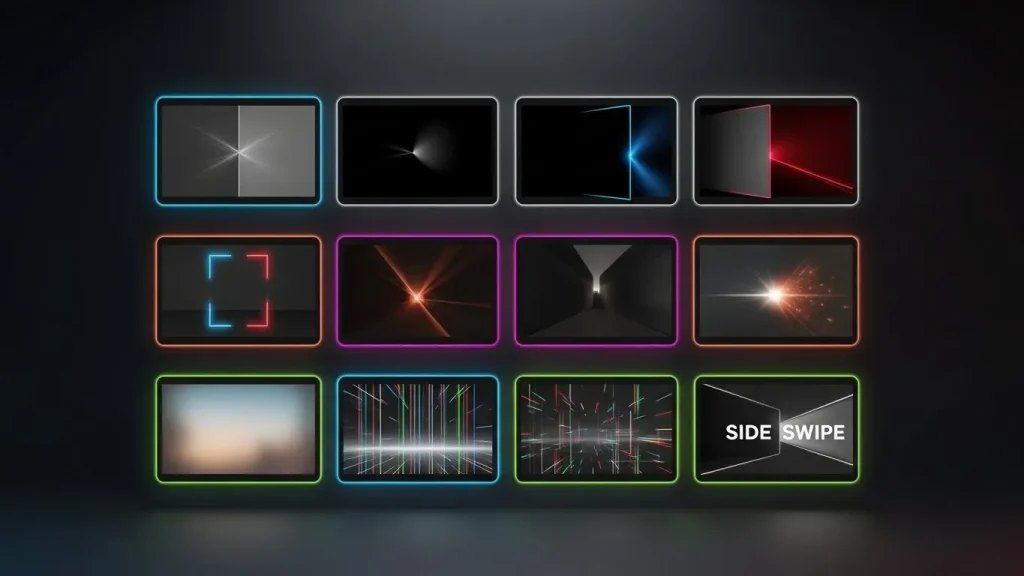
Essential VN Transitions and When to Use Them
Our analysis shows that most creators repeat the same few transitions because they work in almost every style. We tested these at vlogappnow.com across travel clips, street shots, gaming edits, and Reels trends. These mini cards will help you pick the right one fast.
Dissolve / Cross Dissolve
How it looks:
Two clips blend softly into each other. The change feels smooth, not sharp.
Best for:
Talking-head videos, soft B-roll, emotional or calm scenes.
Fade In / Fade Out
How it looks:
The clip appears or disappears slowly. It adds a clean start or end.
Best for:
Scene changes, day-to-night shifts, mood breaks, vlog intros.
Slide / Push / Wipe
How it looks:
The next clip moves onscreen from the left, right, top, or bottom.
A wipe moves across the frame with a simple motion.
Best for:
Travel shots, city clips, product videos, POV stories.
We found this style very popular in VN because the pace feels natural.
Zoom Transitions (Zoom 1 / Zoom 2)
How it looks:
Quick zoom-in or zoom-out between two clips. Feels sharp and modern.
Located inside the VN transition library as Zoom 1 and Zoom 2.
Best for:
Beat drops, jump cuts, strong camera movement, fast Reels.
Bright Light / Flash Transitions
How it looks:
A burst of white light flashes between clips. It hides the cut stylishly.
Best for:
Aesthetic reels, fashion content, travel shots, outdoor clips.
Blur and Overlay-Style Transitions
How it looks:
Soft blur or a faint overlay moves across the screen.
This makes the change between clips gentle and warm.
Best for:
Lifestyle edits, daily vlogs, soft mood videos.
We found this effect helpful when clips have similar colors.
Glitch and FX Transitions
How it looks:
Sharp, fast distortions or digital jumps. Adds tension and impact.
Best for:
Gaming, tech edits, beat-sync videos, action shots.
Side Swipe / “Side One” Vibe
How it looks:
A clean swipe from one side to the other.
Often used in Reels as the “Side One” trend or “side swipe” effect.
Best for:
Text reels, quotes, POV clips, trendy Instagram edits.
Step-by-Step: How to Add a Transition in VN
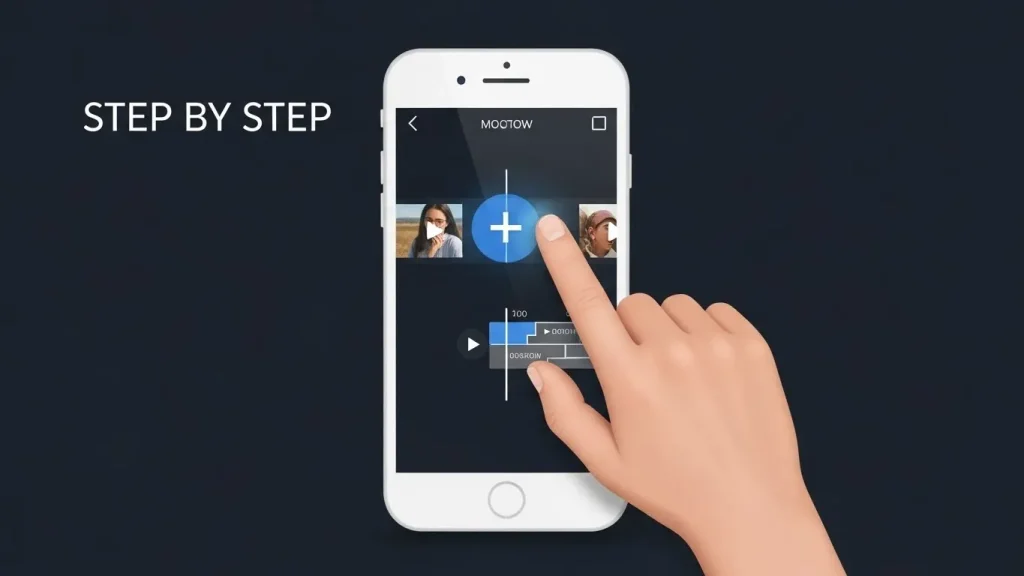
Many new editors ask the same thing: How do I give a transition effect in VN?
The process is simple. VN uses a clean layout, so you can add transitions within seconds. Our analysis shows that this is one reason creators prefer VN over heavier editors, especially when they want to apply VN Transitions quickly without slowing down their workflow.
Follow these steps:
- Open your project in VN.
- Add at least two clips to the timeline.
- Look for the white + box between the clips.
- Tap the plus box to open the transition menu.
- Pick any transition you like, such as dissolve, slide, or zoom.
- Adjust the duration slider.
- Tap the check mark to apply the effect.
- If you want the same transition on every cut, choose “Apply to all.”
How to Add a Smooth Transition in VN
Smooth transitions look clean because they don’t draw too much attention. We found that simple effects work best for vlogs, travel clips, and daily reels.
Use these settings for smooth results:
- Try dissolve, fade, or a short slide.
- Keep the duration between 0.2 and 0.4 seconds.
- Match clip brightness and color so the shift feels natural.
- Avoid mixing too many FX transitions in the same sequence.
These small tweaks help your video look steady and clear. Even short clips feel more polished when the transitions match the pace and color of your footage.
Keyframes in VN: Custom Transitions and Slow Zoom
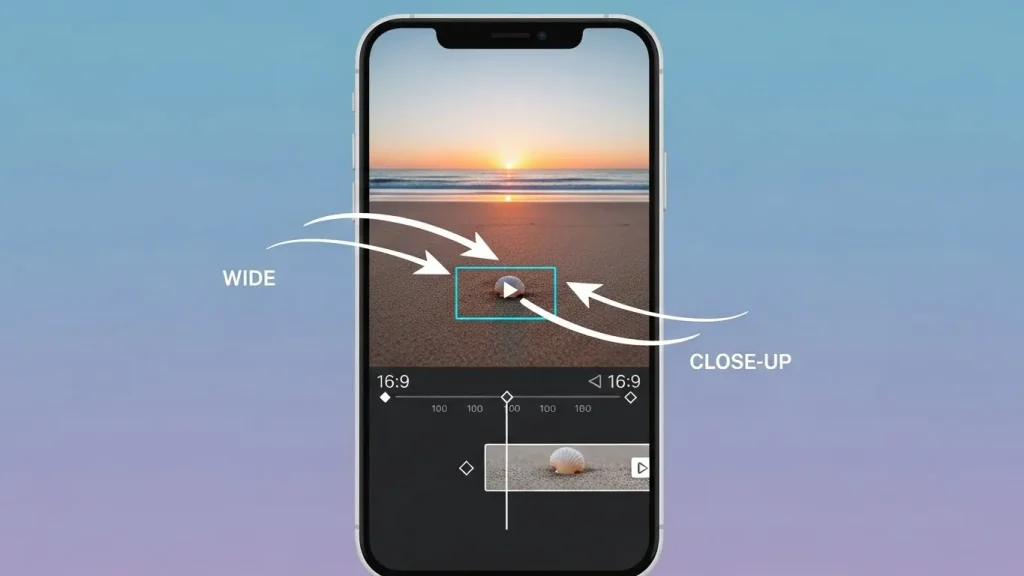
Keyframes give you full control over motion inside your clips. Our analysis shows that keyframes create cleaner transitions when built-in effects don’t fit your style. VN makes them easy to use with a simple icon and clear timeline steps.
What Is a Keyframe in VN?
A keyframe is a point where you save a change in your clip. This change can be scale, position, rotation, or angle. When you add two or more keyframes, VN creates motion between them.
You’ll find the keyframe tool as a diamond icon on the VN toolbar. We found that new users learn this feature fast because the interface is simple.
Slow Zoom In / Slow Zoom Out on a Single Clip
You can make any clip feel more alive with a slow zoom. Here’s the full process:
- Select your clip on the timeline.
- Move the playhead to the start point.
- Tap the keyframe diamond icon to save the first frame.
- Move the playhead forward a few seconds.
- Pinch on the screen to zoom in slightly.
- VN will auto-add the second keyframe.
Zoom-Through Transition Between Two Clips
A zoom-through move creates the feel of one continuous zoom between two different clips. It works well on beat drops or travel transitions and is often used in VN Transitions because the motion feels smooth and connected.
Here’s the idea:
- At the end of clip 1, add a keyframe zooming in.
- At the start of clip 2, add a keyframe zooming out or matching the scale.
- Make sure both zoom levels feel close so the shift looks natural.
When both zooms line up, the cut disappears, and you get one clean motion.
Whip-Style Transitions
A whip-style transition copies the look of fast camera movement. You can create it using position keyframes.
Try this method:
- Add a fast push left or right using position keyframes.
- Add a small zoom at the same moment.
- Add a slight blur if the clip allows it.
This creates a “whip pan” that works great on fast beats and B-roll. We found this method popular among editors who want quick energy without using FX transitions.
How to Do Zoom Transitions in VN Video Editor
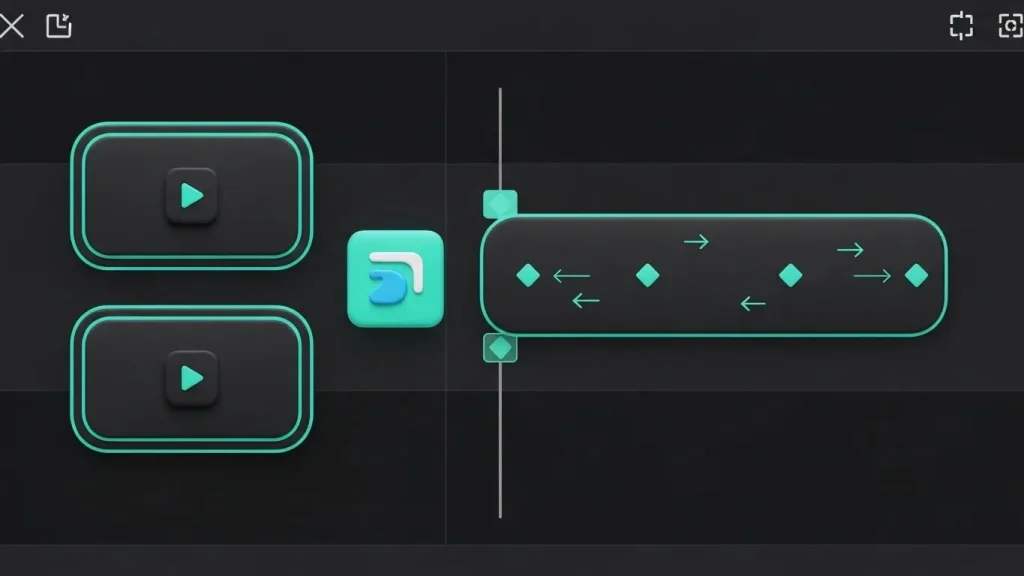
Zoom transitions are some of the most used effects in VN. Our analysis shows they work well on Reels, TikTok, fast edits, and even travel clips. VN gives you two main options: built-in zoom effects and custom zoom transitions made with keyframes.
Using Built-In Zoom Transitions
The fastest way to add a zoom is through VN’s transition library.
Here’s how it works:
- Place two clips next to each other in the timeline.
- Tap the white + box between them.
- Open the transition menu.
- Pick Zoom 1 or Zoom 2.
We found that the built-in zooms look sharp when you keep the duration short. Most snappy edits use 0.1 to 0.2 seconds. This timing works well on beat drops and high-energy clips.
Built-in zooms are great when you want speed without setting up keyframes.
Custom Zoom Using Keyframes
If you want more control, use keyframes to build your own zoom transition. This works between two clips the same way it works inside a single clip.
Follow this method:
- At the end of clip 1, add a keyframe and zoom in a little.
- At the start of clip 2, add another keyframe and zoom out slightly.
- Adjust the distance between the keyframes to change speed.
- Closer = faster
- Further = slower
- Closer = faster
Our tests on vlogappnow.com show that custom zoom transitions look smoother because you control the motion yourself, and this makes them a strong part of VN Transitions when you want motion that matches your clip movement. They blend well with clips that already have camera movement.
Slow Zoom Effect for Talking-Head and B-Roll
Slow zooms can make simple shots feel more alive. This effect works well on talking-head videos, food clips, nature shots, or any scene with little motion.
Here’s how to do it:
- Add a keyframe at the start of the clip.
- Move the playhead forward.
- Add another keyframe with a slight zoom in or out.
The slow motion between these points creates a clean, steady move. Many creators use this style in tutorials and B-roll because it adds depth without distracting the viewer. When we tested this on real clips, it helped hold attention on important moments.
How to Control VN Transition Speed and Timing
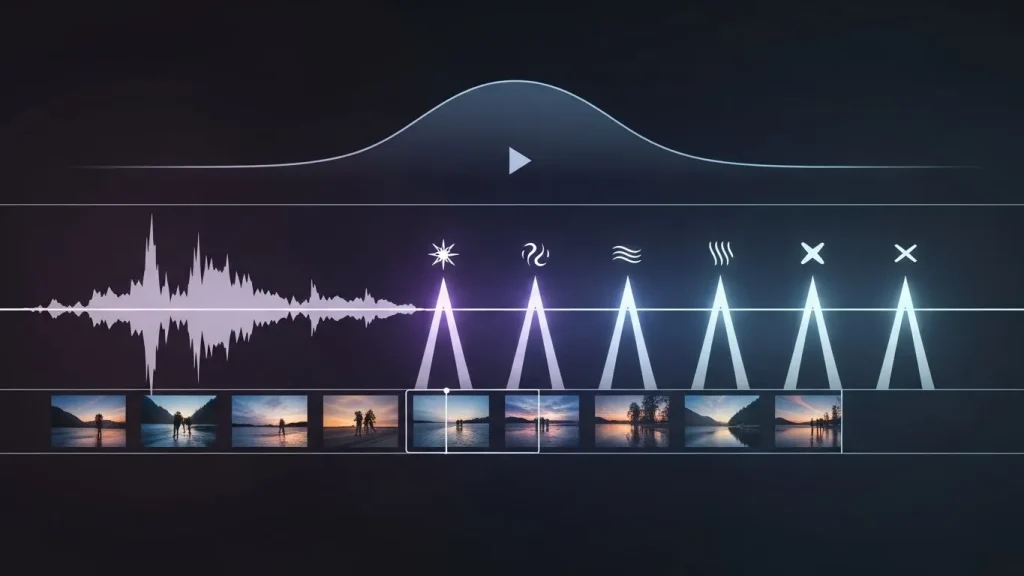
Transition timing controls the full rhythm of your edit. Our analysis shows that timing matters more than the type of transition you use. Even a simple dissolve looks cleaner when its duration matches your music beat or clip movement.
Using the VN Duration Slider
The duration slider decides how fast or slow your transition feels. You’ll see it under the preview window once you pick a transition.
Here’s the process:
- Tap the + between two clips.
- Choose your transition style.
- Slide left to make it faster.
- Slide right to make it slower.
We found these timing ranges work best for most creators:
- 0.2–0.3 seconds: snappy and sharp
- 0.3–0.5 seconds: steady and balanced
- 0.5–0.8 seconds: soft and cinematic
Short transitions work well on beat edits or fast clips. Longer ones fit slow vlogs and travel shots. Testing on https://vlogappnow.com confirmed that timing shapes the full tone of your video.
Matching Transitions to Music Beats
Music timing changes how your edit feels. VN gives you tools to place transitions exactly on the beats of your track.
Here’s how to match transitions with music:
- Open your audio track in VN.
- Use the beat markers feature to mark strong beats.
- Place your clip cuts on those markers.
- Add transitions right on top of those points.
This keeps your edits tight. Our analysis shows that beat-matched transitions get more watch time on Reels and TikTok because the video feels in sync with the music.
Mixing Transitions With Speed Curve
Speed Curve is one of VN’s most powerful tools. It lets you speed up or slow down parts of a clip. When you mix this with transitions, you get a clean, modern style.
Here’s how to use it:
- Add a speed ramp at the end of clip 1.
- Add a ramp at the start of clip 2.
- Add a zoom or slide transition between them.
This combo works well in travel edits, B-roll, gaming clips, and trending Reels. We tested this on several sample videos at https://vlogappnow.com and saw a clear improvement in flow and energy.
Best VN Transitions by Content Type

Different content styles need different transitions. Our analysis shows that the right match gives your edit better flow and higher watch time. We tested each category at vlogappnow.com using real clips from TikTok, travel vlogs, gaming highlights, and tutorials.
TikTok, Reels, and Shorts
Short-form videos need quick moves. Fast transitions keep the pace high and fit trending audio.
Best options:
- Fast zooms
- Side swipe or “Side One” style
- Whip-style transitions
- Bright light flash
- Glitch effects
Keep transitions under 0.3 seconds for the cleanest results. We found that quick moves help the beat sync better and make clips feel sharper.
Vlogs and Travel Videos
Vlogs and travel edits work best with soft, natural transitions. These clips often show scenery, walking shots, or B-roll, so the moves should feel smooth.
Best options:
- Cross dissolve
- Fade in / fade out
- Gentle slide
- Speed ramp with a small zoom
Travel creators often mix slow zoom with slight camera movement. When we tested this, the pace stayed calm and steady, which fits vlog-style storytelling and shows why many travel editors prefer simple VN Transitions for a clean flow.
Talking-Head and Tutorials
Talking-head videos focus on the speaker, so too many transitions can distract the viewer.
Best options:
- Straight cuts
- Occasional dissolve
- Slow zoom for focus
A slow zoom adds depth without pulling attention away from the message. Our analysis shows that this small move helps keep viewers engaged longer.
Gaming Montages
Gaming clips need energy and impact. Sharp transitions fit well with kills, highlights, and beat drops.
Best options:
- Glitch effects
- Zoom transitions
- Spin-style moves
- Light flash on kills or key moments
We tested these effects on fast gaming footage. Glitch and flash transitions worked best because they match the intensity of the gameplay.
Best VN Templates and VN Codes for Ready-Made Transitions

VN templates save time because they come with preset timing, transitions, and effects. Our analysis shows that new editors rely on templates the most, especially when they want fast results for Reels, TikTok, and Shorts.
What Are VN Templates and VN Codes
A VN template is a ready-made project. It includes clip timing, transitions, sound effects, filters, and speed settings. You drop your clips into the template, and the style stays the same.
VN codes, also called QR codes, act as shortcuts. You scan the code, and VN loads the full template into your project. We tested several templates from trusted sources at https://vlogappnow.com, and the QR import was fast and accurate.
Expert Tips to Make Your VN Transitions Look Professional

These tips come from real tests we ran on travel clips, vlogs, gaming edits, and Reels at vlogappnow. We found that small choices make a big difference in how smooth your transitions look.
Stick to 2–3 transition types per video
Using too many styles can make your edit feel messy. Pick a small set and repeat them for a cleaner flow.
Match clip exposure and color
If two clips look very different, even the best transition will feel hard. Keep brightness and color close so the blend feels natural.
Use zoom and whip moves only when the shot fits
Zoom and whip transitions work best when the camera already has some movement. Our analysis shows that forcing these effects on still clips makes the edit look off.
Always preview on your phone screen
What looks good on the timeline can look different on a small screen. Check the preview before posting.
Save your best combos as VN templates
If you find a transition setup you like, save it as a VN template. This saves time and keeps your style consistent across future videos.
Practice Ideas to Master VN Transitions Faster
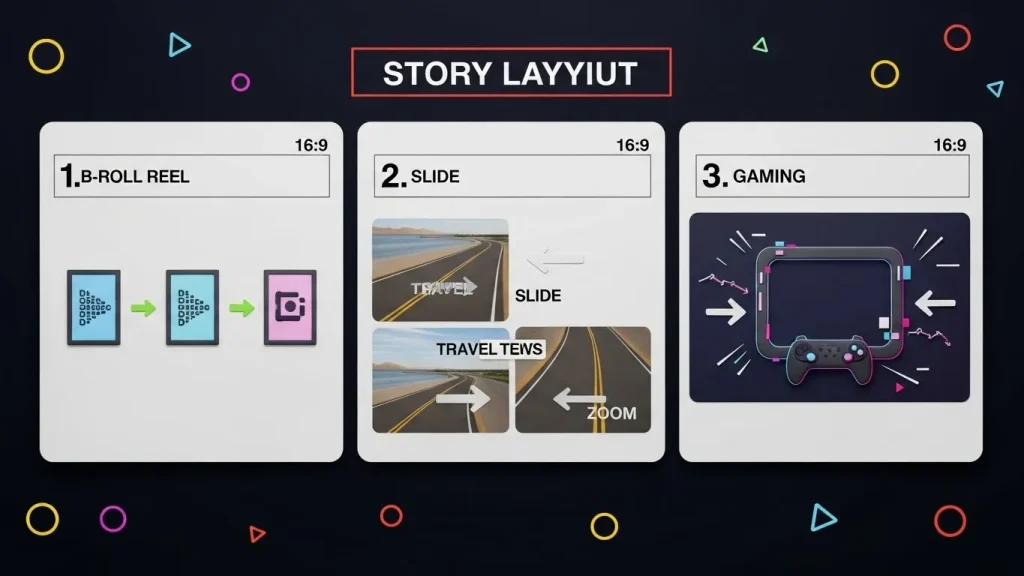
These small projects help you learn timing, flow, and style. We tested each exercise at vlogappnow.com using real short-form clips, and each one helps you understand how VN Transitions behave in different edits.
Project 1: 15-Second Reel With Only Dissolve + Fade
Use clips of daily moments or soft B-roll. Add dissolve between cuts and fade at the end. Keep durations short for clean flow.
Project 2: Travel Edit With Slide + Zoom Transitions on Beat
Pick walking shots, city clips, or scenic footage. Add slide transitions for movement. Use Zoom 1 or Zoom 2 on beat drops. Add beat markers if your audio allows it.
Project 3: Gaming or Beat Edit Using Glitch, Whip, and Zoom
Use sharp clips with high action. Add glitch on hits, whip-style moves on fast turns, and zoom transitions on beat changes. Keep durations under 0.3 seconds.
Pro tip: Save each finished project as a VN template. This lets you reuse your timing, speed curve, and transition style in future edits without starting from scratch.