
How To Add Text in VN Video Editor Easily
Text makes videos clear, engaging, and easy to understand. Creators use it to highlight key points. Marketers rely on it to deliver strong messages. Influencers add it to boost storytelling and connect with viewers. You can enhance these effects further by exploring VN effects download for more text styles, animations, and transitions.
If you’re new and wondering How To Add Text in VN Video Editor can help, this app stands out as one of the most popular free tools for editing. It gives users control over text, music, clips, and effects in one place. For those who want more freedom, VN Mod APK offers extra options. It helps users unlock advanced text styles, fonts, and layouts that the regular app limits.
This makes editing faster and more flexible for any project, especially when you apply How to use VN templates to streamline your workflow.
Why Add Text to Your Videos?

Key Features of VN Video Editor for Adding Text
VN Video Editor gives you strong tools to design text that fits any video style. Each feature makes your edits look sharp and professional. Even if you are using the VN Old Version, the core tools still help you design text that looks clean and polished.
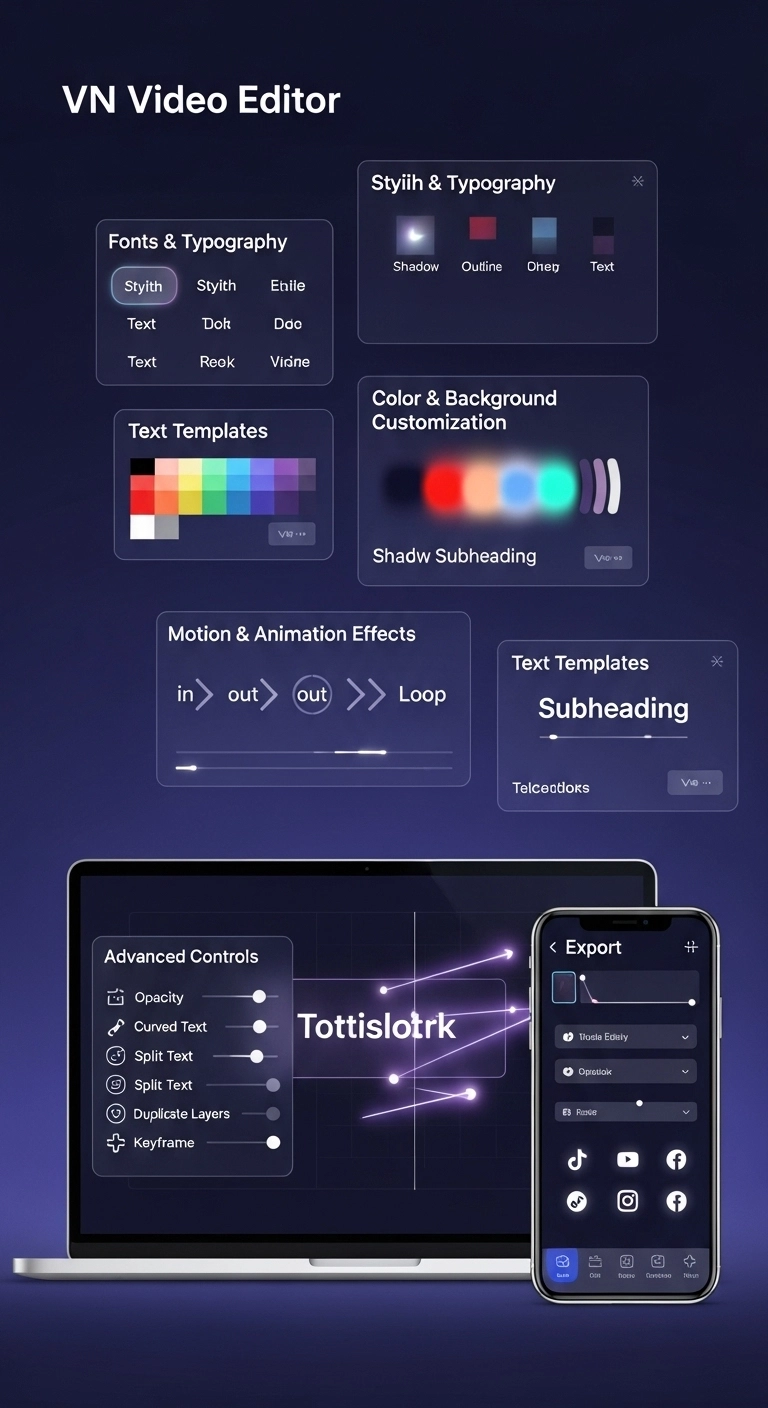
Fonts & Typography
Choose from multiple font families and styles. The app includes basics, but the VN unlocked version gives access to extra fonts for creative freedom, making it easier to how to add subtitles in VN Video Editor professionally.
Color & Background Customization
Change text color, add outlines, shadows, or even gradient backgrounds. These options help your words stand out on any footage, showing why VN Video Editor vs Alight Motion differs in text customization and visual effects.
Text Templates
Use ready-made templates for titles, subheadings, or captions. Templates save time and keep your video design consistent.
Motion & Animation Effects
Add smooth in, out, or loop animations. Moving text grabs attention and makes your edits more dynamic. When you compare VN vs Kinemaster, you’ll see VN makes text animations easier and faster to apply.
Advanced Controls
Control opacity, curve your text, split it, or duplicate it. Use keyframes to sync movement with clips. Lock text layers to keep them steady while editing.
Export Options
Export your project in HD or use presets for TikTok, YouTube, Instagram, or Facebook. Text stays crisp across all platforms.
How to Add Text in VN Video Editor (Step-by-Step Guide)
Step 1 – Open VN Video Editor & Import Your Video
Launch the app and tap the new project button. Select your video clip from the gallery and load it onto the timeline.

Step 2 – Tap the “T” Text Icon on the Timeline
On the toolbar, find the T icon. Tap it to start adding text to your video project.

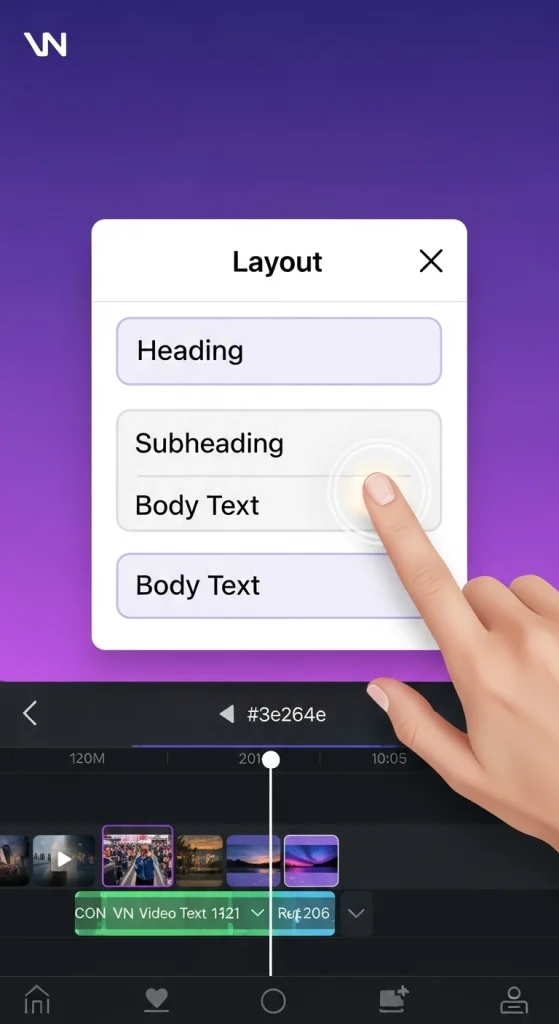
Step 3 – Choose a Layout (Heading, Subheading, Body Text)
Pick from heading, subheading, or body text. Use headings for titles, subheadings for highlights, and body text for longer captions.
Step 4 – Type Your Text
Tap inside the text box and type your words. Keep it short, clear, and easy to read.

Step 5 – Customize the Style (Font, Size, Color, Spacing, Background)
Select your font and adjust size, spacing, and alignment. Change text colors or add shadows and backgrounds for contrast.

Step 6 – Position & Resize the Text on the Screen
Drag the text box where you want it. Pinch to resize and make sure it doesn’t block the main visuals.

Step 7 – Add Motion & Animation Effects
Choose an in, out, or loop animation. Motion draws attention and makes the text blend with your video’s flow.

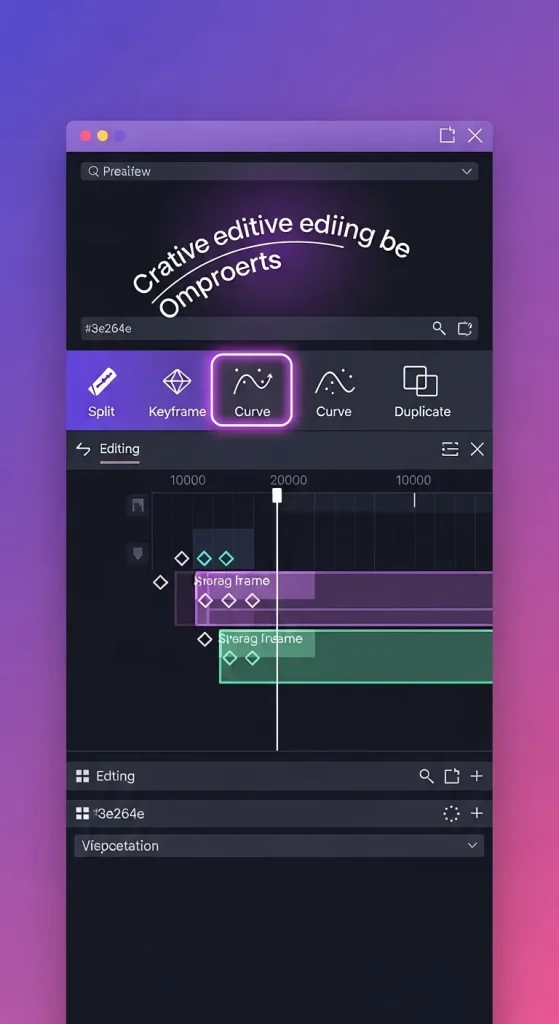
Step 8 – Use Advanced Tools (Split, Keyframe, Curve, Duplicate)
Split text across clips, curve it for creative layouts, or duplicate for speed. Keyframes let you sync text with audio or actions.
Step 9 – Review, Save & Export the Final Video
Play the full clip to check timing and style. Once happy, export in HD or select presets for YouTube, TikTok, Instagram, or Facebook.

Pro Tips for Adding Text in VN Video Editor
Common Mistakes to Avoid When Adding Text
Advanced Text Editing in VN Video Editor (Pro Level)
Conclusion
Adding text in VN Video Editor is simple but highly effective. It turns plain clips into engaging, polished content. With practice, anyone can design professional-looking videos. Fonts, colors, animations, and templates give you endless room to create.
If you’re looking for a step-by-step method on How To Add Text in VN Video Editor, using layouts, motion effects, and the extended tools in the unlocked VN app helps shape a unique style for every project. Start editing your videos with VN today and make your content stand out on every platform.
FAQs
Can I use custom fonts in VN Video Editor?
Yes, the app includes basic fonts, but you can also import custom ones. The VN premium version unlocks more font styles.
Will my text appear on all devices?
Text stays consistent across phones, tablets, and desktops. Still, always preview your video before exporting to confirm clarity.
Can I add animated text or transitions?
Yes, VN offers built-in motion effects like fade, slide, or zoom. You can also combine text with creative scene transitions.
How does the VN pro edition enhance text editing?
With VN, you unlock advanced fonts, layouts, and effects. It gives more flexibility than the standard version.
Does VN Video Editor support subtitles for YouTube or TikTok?
Yes, You can add manual captions or import SRT files for auto-subtitles. This is perfect for YouTube, TikTok, or Instagram reels.